
Scan to PDF
Select a device, choose settings, and scan directly from the browser to PDF
Drop your files here or
Upload from your device
Upload from Google Drive
Upload from DropBox
Upload from Web address (URL)
Powered by Nutrient Scanning (utilizing GdPicture.NET SDK). See Implementation Guide
Privacy notice
Files are accessible for up to 30 minutes after upload and can be cleared manually right after processing by clicking the bin icon. We do not retain files for AvePDF Premium subscribers.
To improve our tools, we retain the files you upload to our free service and use them to develop and improve our services, including to train our models. To request deletion of your files, see our Privacy Policy.
Need to automate Document Scanning in your own app?
AvePDF is built on Nutrient's enterprise-grade PDF SDK. Explore our Document Processing solutions for developers or view the GdPicture Scanning SDK that powers this tool.
How to scan online:
- To start, download and install the scanner driver on your device.
- Select your scanning device.
- Click on the Scan button to open the scanner interface.
- Choose your settings and click on the Scan button.
- Click on the Validate button to save the scanned file.
- Download the scanned PDF file to your computer or save it directly to your cloud storage service.
- Click on the Add button to scan another document or click on Restart if you wish to reset the process.
Blog posts
Did you know?
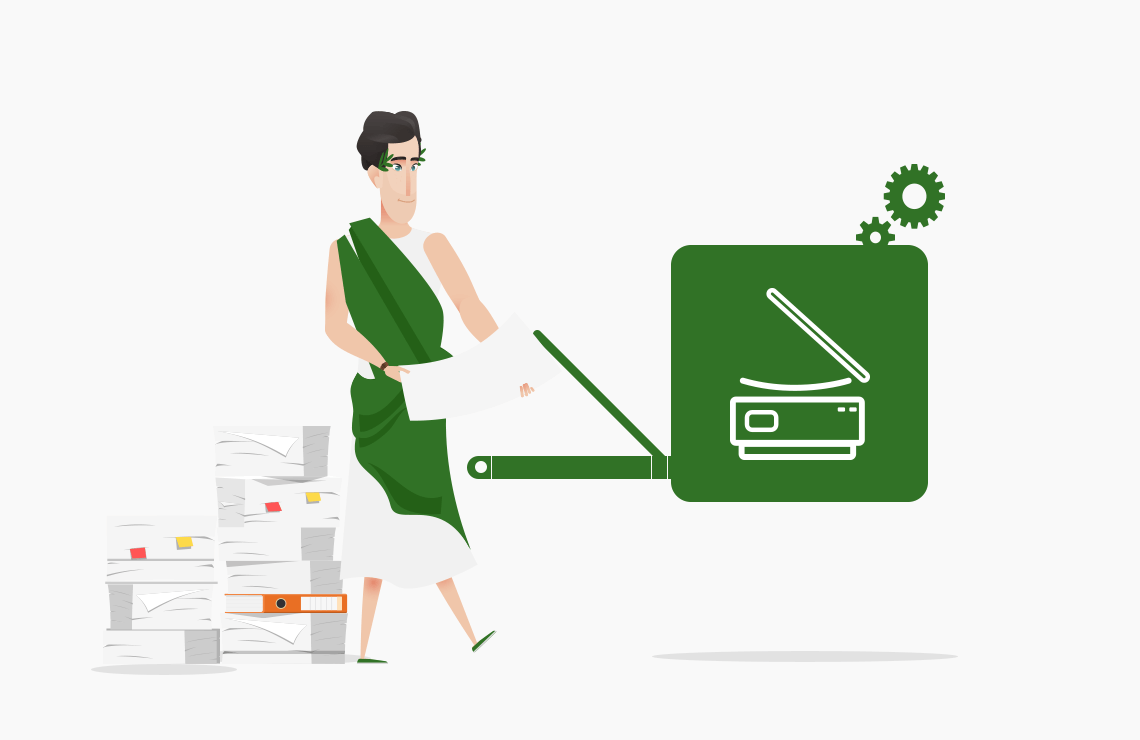
A simple way to describe scanners would be that they “take a photography” of a document.
But unlike cameras that are often subject to distortions and other artifacts, scanners usually offer the highest image quality possible. Technically speaking, scanners shines a bright light all over the document, and its reflection is sent through mirrors to an optical captor. The signal is then converted to bytes and results in a digital image displayed on the screen.
The idea of scanning documents is quite old. Did you know that we’re scanning documents since the 19th century? The pantelegraph is often considered the first scanning machine.
But unlike cameras that are often subject to distortions and other artifacts, scanners usually offer the highest image quality possible. Technically speaking, scanners shines a bright light all over the document, and its reflection is sent through mirrors to an optical captor. The signal is then converted to bytes and results in a digital image displayed on the screen.
The idea of scanning documents is quite old. Did you know that we’re scanning documents since the 19th century? The pantelegraph is often considered the first scanning machine.
The acquisition process requires three items: a scanner, a driver, and software. Drivers are the bridges that let the software communicate with the device through standardized APIs. A few scanning protocols exist, but TWAIN is the one you will find the most. It is a universal public standard that links applications and image acquisition devices, for most operating system platforms. The protocol defines a set of options like resolution, color, scanning areas for flatbed scanners, and more. The TWAIN Working Group develops and maintains TWAIN since 1992. As you may have guessed, AvePDF supports TWAIN-compatible scanners.
Each scanner type and model requires its specific driver.
You need to make sure to use the exact driver for the exact model of scanner, written for the exact operating system you are using. However, drivers are not infallible, and they are subject to bugs and glitches too. So, make sure always to use the latest available version.
Most documents need post-scan operations. It is particularly true if you want to execute OCR (Optical Character Recognition) to make the text searchable. To get the best OCR results with your scanned document, you will need to optimize it. To learn more about OCR optimization, please read the Did you know? section of our OCR PDF tool.
You need to make sure to use the exact driver for the exact model of scanner, written for the exact operating system you are using. However, drivers are not infallible, and they are subject to bugs and glitches too. So, make sure always to use the latest available version.
Most documents need post-scan operations. It is particularly true if you want to execute OCR (Optical Character Recognition) to make the text searchable. To get the best OCR results with your scanned document, you will need to optimize it. To learn more about OCR optimization, please read the Did you know? section of our OCR PDF tool.
PDF Tools
Languages
Developers


Legal
Contact us
Copyright 2017-2026 Orpalis Imaging SAS d/b/a Nutrient.
All rights reserved.